
 Home
Home Reader



 Flipper
 Cardputer
 Software
 Windows
 PCSC Mifare Program
 Chameleon Ultra GUI
 iOS
iOS Android
 Web
WebUHF Reader, Tag Clone
How to Clone a UHF Tag with Flipper Zero
Aug
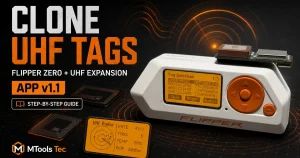
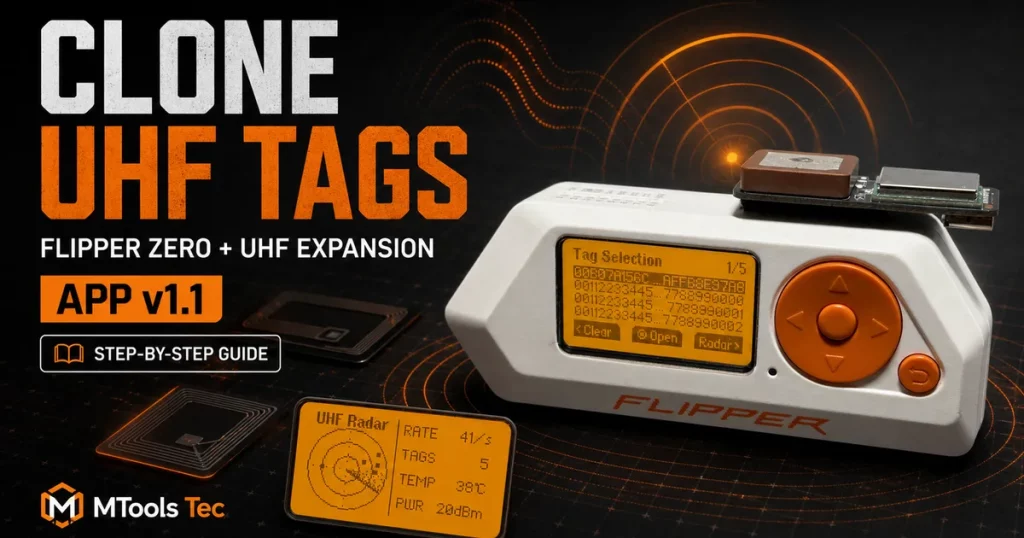
Flipper Zero can become a portable UHF RFID inventory and tag-memory tool when paired with the dedicated UHF Expansion for FlipperZero. With the latest UHF Expansion app, you can scan compatible EPC Gen2 tags, select a source tag, inspect its EPC, TID, and User Data, and write supported memory banks to a compatible destination tag.
Use this guide only with tags and systems you own or are explicitly authorized to test. Copying an RFID identifier may be restricted by law or policy, and duplicating tag memory does not necessarily reproduce the behavior of a secured access, payment, logistics, or asset-management system.
What you need
- A Flipper Zero with a microSD card
- The UHF Expansion for FlipperZero — this is a different module from the Cardputer UHF Expansion
- The latest UHF Expansion app from the official Flipper Apps Catalog
- A source UHF tag you are authorized to copy
- A compatible writable destination tag
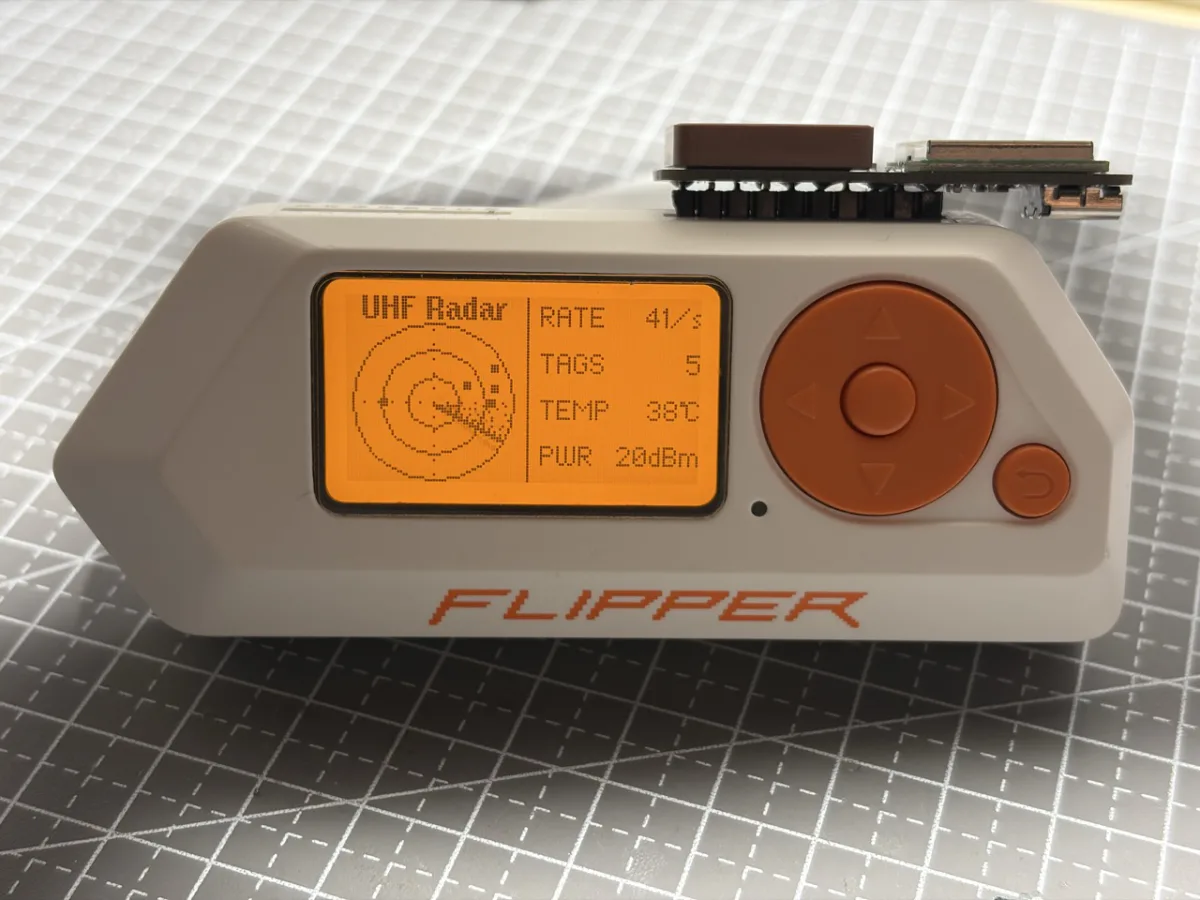
The expansion communicates with Flipper Zero over the GPIO UART interface. The current app is designed for compatible ISO 18000-6C / EPC Gen2 tags and supports inventory plus verified read/write operations for EPC, TID, and User Data on tags that expose writable versions of those banks.
Install the latest UHF Expansion app
Official Flipper firmware
For the standard Flipper firmware, install UHF Expansion from the official Flipper Apps Catalog. Version 1.1 is now available directly in Flipper Apps, adding read and verified write operations for EPC, TID, and User Data on compatible tags. Connect your Flipper Zero to Flipper Lab and install or update to version 1.1 before following this guide.
Third-party Flipper firmware
A Catalog-built FAP may not always match the application API or build requirements of a third-party firmware. If you use a custom firmware build, download the latest source from the MTools Tec fz-uhf-expansion repository and compile it with the SDK or build environment required by your firmware.
git clone https://github.com/mtoolstec/fz-uhf-expansion.git
cd fz-uhf-expansion
python3 -m pip install --upgrade ufbt
ufbt build
With the standard uFBT workflow, the compiled file is created as build/uhf_expansion.fap. Copy the compatible FAP to SD Card/apps/GPIO/uhf_expansion.fap, or use ufbt launch during development. Custom firmware projects may provide their own SDK setup or FAP installation instructions; follow those instructions when they differ.
How to clone a compatible UHF tag with Flipper Zero
1. Connect the expansion and open the app
Power off the Flipper Zero before attaching the UHF Expansion to the GPIO header. Check that the module is seated in the correct orientation, turn the Flipper back on, and open Apps → GPIO → UHF Expansion.
2. Switch to List mode and start inventory
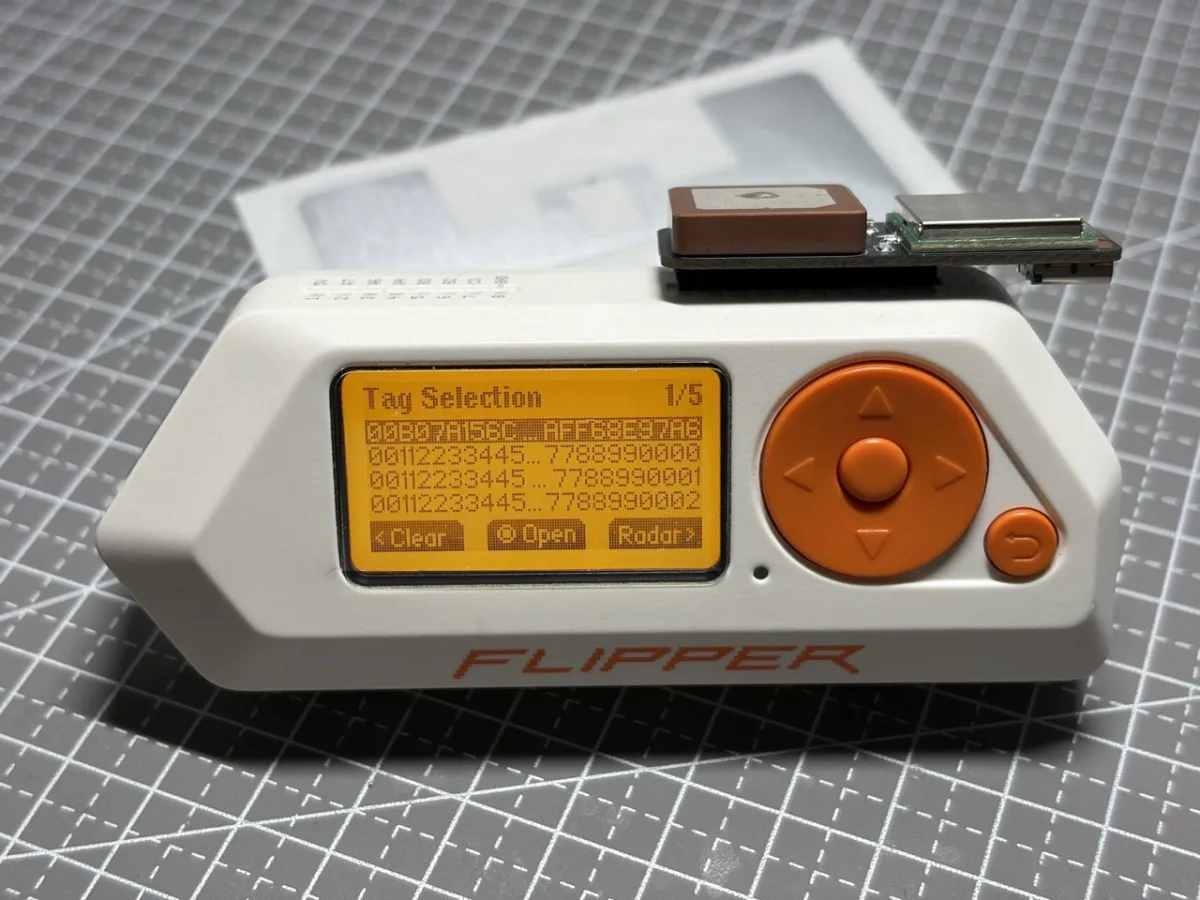
If the app opens on the radar view, press Right to switch to the tag list. Press OK to start inventory scanning. Detected tags appear as EPC entries with their read counts. Keep only the tags you intend to inspect near the antenna whenever possible.
3. Select and open the source tag
Use Up and Down to highlight the required source tag, then press OK. Inventory pauses and the tag memory screen opens. The EPC bank is displayed first.
4. Read EPC, TID, and User Data before swapping tags
Press Left to cycle through EPC, TID, and User Data. When you switch to TID or User Data, the app reads that bank from the selected source tag. Cycle through every bank you intend to copy while the source is still the only tag in the RF field, so the values remain available after you replace it with the destination.
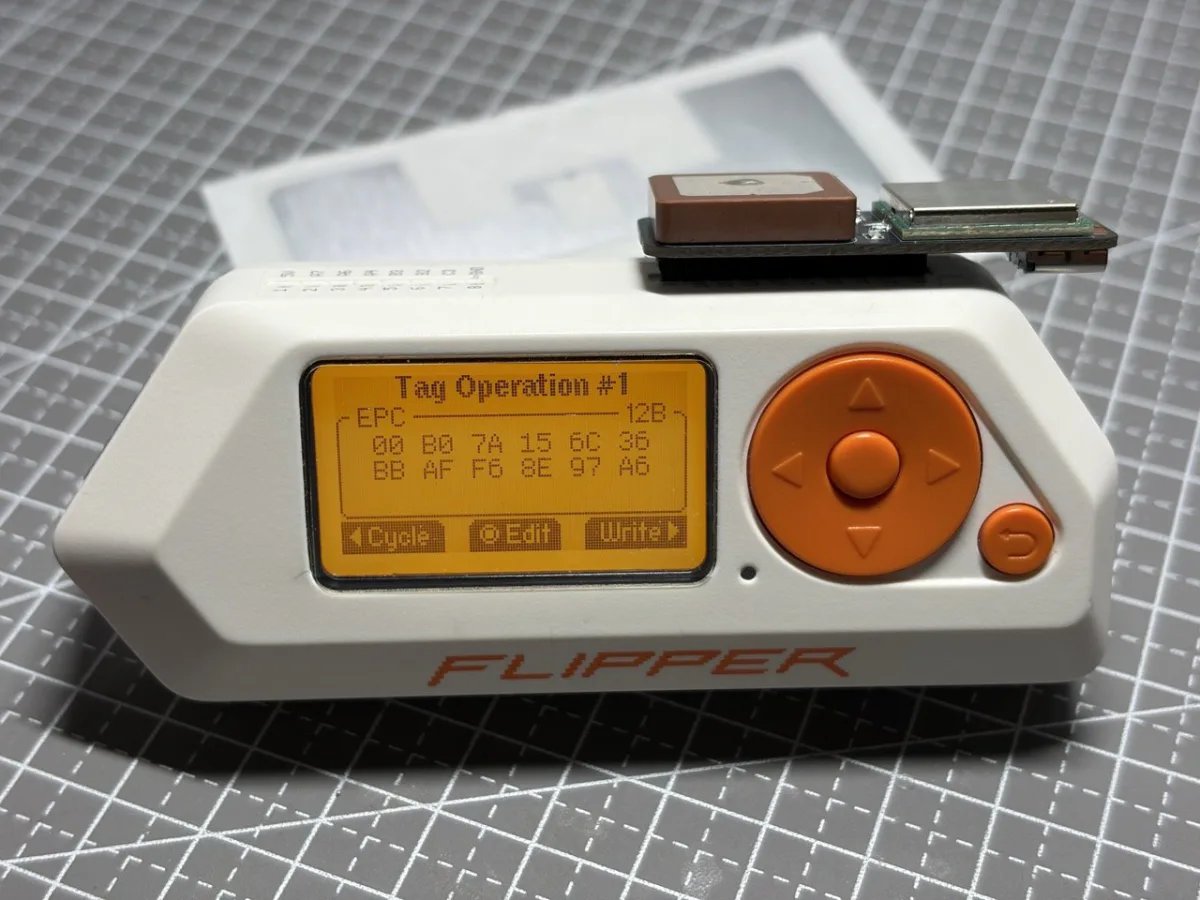
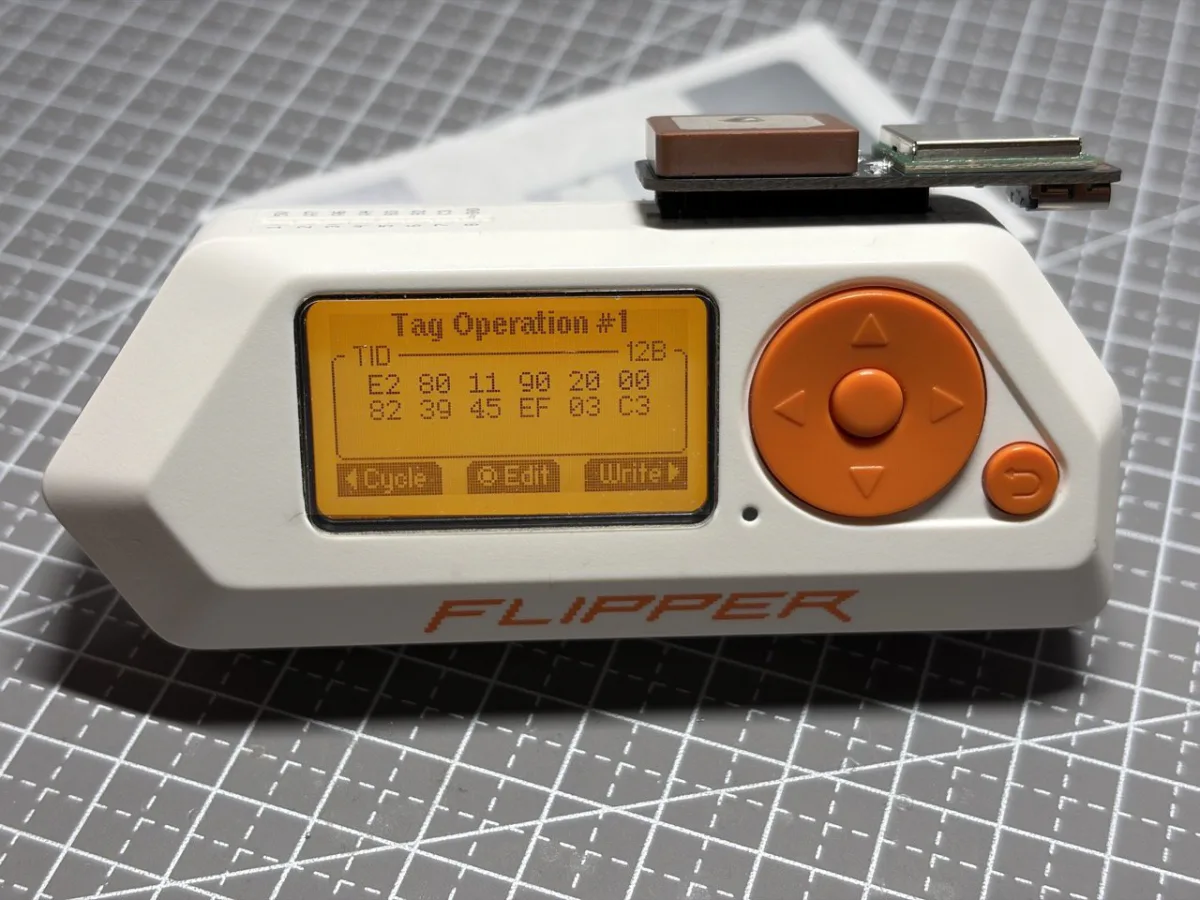
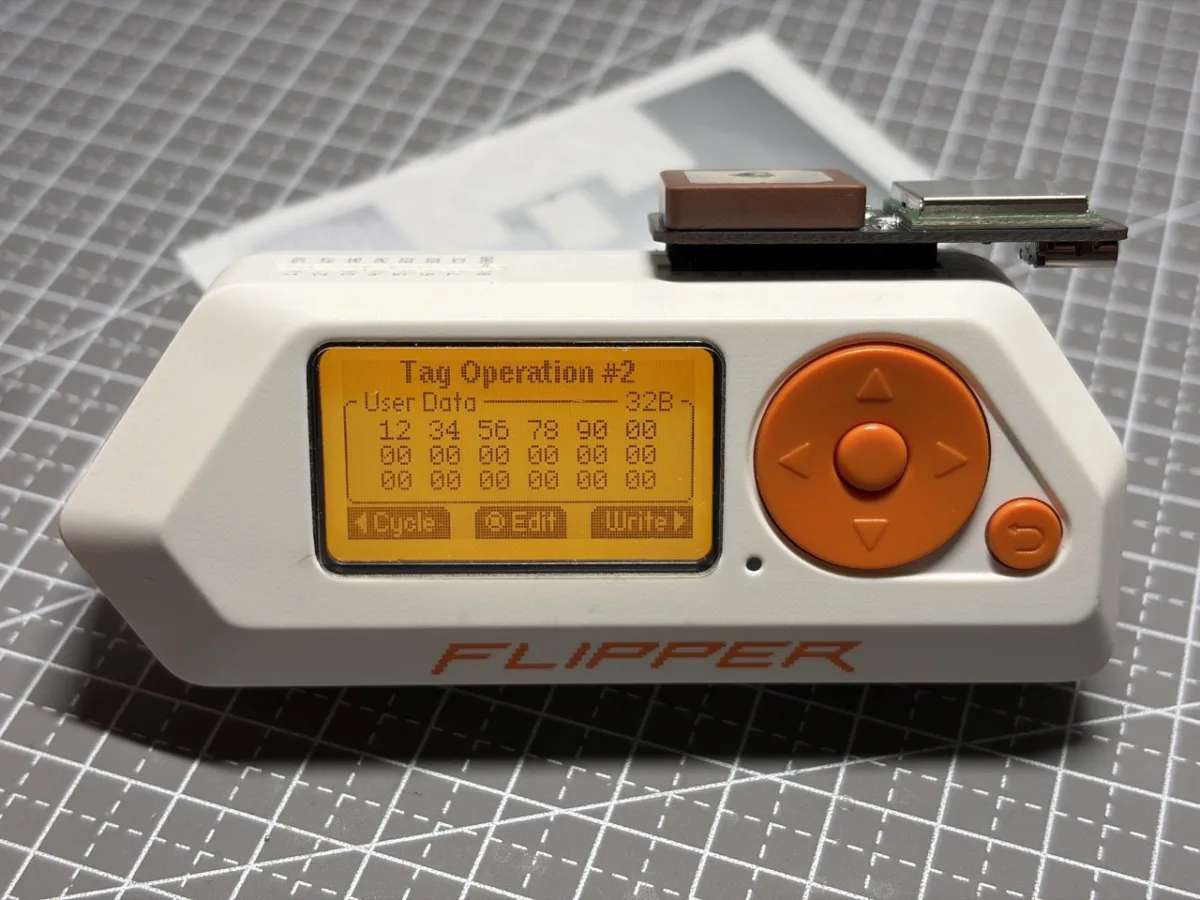
5. Edit a value if required
On the desired memory bank, press OK to edit the hexadecimal value. Data must be entered as complete 16-bit words, so the hex length must be valid for the destination bank. Finishing the edit only updates the value held by the app; it does not write the tag yet.
6. Replace the source with one writable destination tag
Remove the source tag from the antenna field. Place one compatible writable destination tag near the expansion, with all other UHF tags kept out of range. This isolation step is important: the write operation deliberately targets the single tag in the field after the source has been removed.
7. Write and verify each supported bank
Select the bank you want to copy with Left, then press Right to write its displayed value to the destination. The app reads the bank back automatically and reports whether verification succeeded. Repeat this for EPC, TID, or User Data only when the destination tag supports writing to that bank.
EPC, TID, and User Data are not equally writable
| Memory bank | Purpose | Typical write behavior |
|---|---|---|
| EPC | The Electronic Product Code normally used as the tag’s inventory identifier. | Writable on many standard tags unless password protected or locked. |
| TID | The Tag Identifier, normally assigned by the chip manufacturer and used to identify the physical tag IC. | Read-only on ordinary tags. Writing requires a purpose-built TID-changeable tag or magic card. |
| User Data | Optional application storage for custom records or small data values. | Writable only when the chip provides User Memory and the bank is large enough and unlocked. |
A successful EPC copy does not mean the destination is a complete physical duplicate. Many systems also evaluate TID, passwords, cryptographic data, backend records, or contextual information that is not reproduced by changing these visible memory banks.
Troubleshooting UHF writes on Flipper Zero
- App does not start: update it from Flipper Lab or compile the latest source against your third-party firmware’s supported SDK.
- Reader is not detected: power off, reseat the expansion, verify its GPIO orientation, and restart the app.
- No tags appear: move the tag closer, change its orientation, and test away from metal or liquid.
- Memory locked: the selected bank may be locked or password protected.
- TID write fails: standard UHF tags have a factory-programmed, read-only TID. Use a TID-changeable tag designed for this workflow.
- Verification mismatch: remove every other tag from the field, improve coupling, and confirm that the destination has enough memory for the complete value.
Build a portable UHF RFID toolkit
The UHF Expansion for FlipperZero combines portable EPC Gen2 inventory with on-device tag inspection and compatible memory writing. Install the current app from Flipper Lab, or build the latest source from GitHub when your firmware requires a custom-compatible FAP.
For experiments that require writable EPC, TID, and User Data, use a compatible TID Changeable UHF Magic Card or another purpose-built changeable tag. Always confirm capacity and lock status before writing.
Quick FAQ
Can Flipper Zero clone every UHF tag?
No. The source and destination must be compatible with the expansion and app, and the relevant destination memory must exist, fit the data, and remain writable.
Which button writes the selected memory bank?
In the tag memory screen, press Right to write the currently displayed EPC, TID, or User Data value. Press OK first only when you need to edit that value.
Why should only one destination tag be near the antenna?
After the source is removed, the app performs an unfiltered write so the replacement tag can receive the stored value. Keeping one destination in range prevents another nearby tag from receiving the operation.

 Magic Card
 Ultimate Magic Card
 4B UID S70 4K KeyFob
 6-in-1 KeyFob
 NTAG 213 215 216
 ISO15693 TAG – 64B
 Gen2 ISO15693 Coin
 RFID Reader
 PN532 BLE
 PcrReader(IC+ID)
 PN532Killer
 GroveNFC
 Proxmark3 RDV4
 iCopy-XS
 UHF Reader
 NFCKill Pro
 125KHz T5577 Cloner
 RFID Emulator
 Chameleon Ultra SE
 Chameleon Mini 2022
 Pixl.js OLED
 RFID Detector (LF HF UHF)
 RF Detector (LF HF)
 Lora
Lora Meshtiny
 GAT562 Pro
 GAT562 30s Kit
 Wio Tracker L1P
 WiFi Deauthor
 WiFi Killer Pro
 Plugin
 店小秘 PayPal 物流同步
 Product Category Banner
 YMM Car Bulb Size
 Attributes Separator
 OpenAI Reviewer
 Code
Code MTools Activation Code
 View All