


 Home
Home Reader









 Flipper
 Cardputer


 Software
 Windows
 PCSC Mifare Program
 Chameleon Ultra GUI
 iOS
iOS Android
 Web
WebMeshtastic, Tips
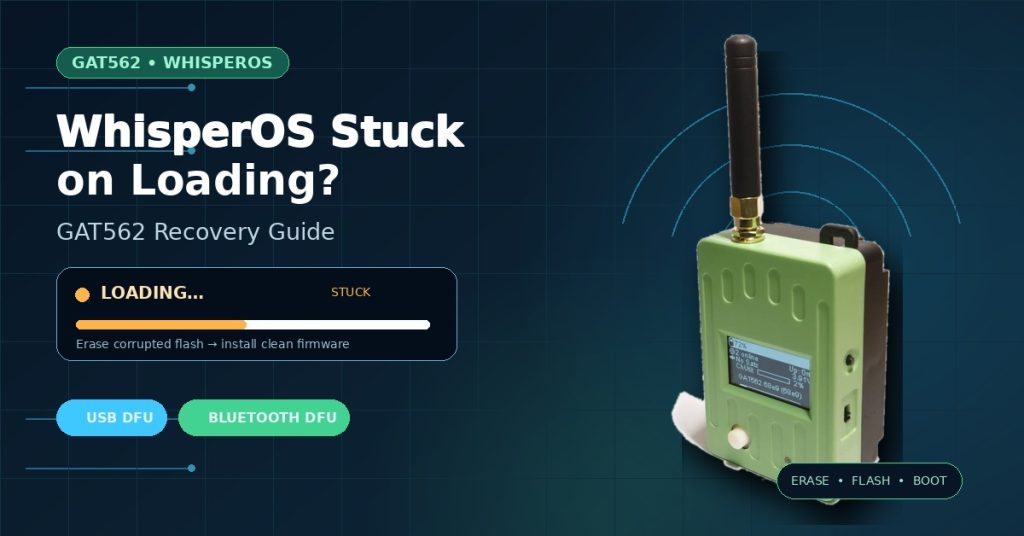
How to Fix WhisperOS Stuck on “Loading…” on GAT562
Apr
If your GAT562 device is stuck on the “Loading…” screen after a firmware flash, don’t worry — this is a common issue with a straightforward fix. In this guide, we’ll walk you through every step to recover your device and get it running WhisperOS with MeshCore.
Symptoms
After flashing MeshCore firmware, your GAT562 may exhibit the following behavior:
- The screen shows “Loading…” and never progresses to the main interface.
- Pressing the “Enter DFU mode” button causes the LED to flash and briefly shows “GAT 562 Tracker”, then reverts back to “Loading…”.
- Removing batteries, pressing the hardware reset button, or power cycling does not resolve the issue.
This typically happens when corrupted firmware data remains in flash memory. The solution is to fully erase the device and flash a clean firmware image.
Solution Overview
There are two methods to recover your GAT562:
- USB DFU Method — Connect via USB cable and use a computer to erase and re-flash.
- Bluetooth DFU Method — Use the MTools BLE app on your phone to wirelessly erase and re-flash.
Method 1: USB DFU Recovery
Step 1: Enter USB DFU Mode
- Connect the GAT562 to your computer via a USB-C cable.
- Hold down the right user button (the button on the right side of the device).
- While holding the right button, power on the device using the left switch.
- The device should now appear as a USB DFU target on your computer.
Step 2: Erase Flash Memory
Before flashing new firmware, use the ERASE function to wipe all data from the device. This clears any corrupted firmware or settings that are causing the “Loading…” loop.
You can use tools like adafruit-nrfutil or the nRF Connect desktop app to perform the erase operation while the device is in USB DFU mode.
Step 3: Flash WhisperOS Firmware
We recommend using WhisperOS to run MeshCore on your GAT562. WhisperOS provides a clean, optimized firmware experience for mesh networking.
- Download the latest WhisperOS firmware for GAT562 from https://ssaprus.works.
- Flash the downloaded firmware file to the device via USB DFU.
- Once flashing is complete, power cycle the device — it should now boot into WhisperOS successfully.
Method 2: Bluetooth DFU Recovery (MTools BLE App)
If you don’t have a USB cable handy, or prefer a wireless approach, you can use the MTools BLE App to recover your device over Bluetooth.
Step 1: Enter BLE DFU Mode
- Hold down the joystick (press it in and hold).
- While holding the joystick, power on the device using the left switch.
- The device will enter Bluetooth DFU mode and become discoverable.
Step 2: Connect with MTools BLE App
- Open the MTools BLE App on your iOS or Android device.
- Navigate to Tools > MeshCore > WhisperOS.
- The app will scan for and connect to your GAT562 in DFU mode.
Step 3: Erase and Flash
- Use the ERASE function in the app to wipe the corrupted data.
- Then flash the latest WhisperOS firmware directly from the app.
- The process takes approximately 5–7 minutes over Bluetooth. Do not interrupt or close the app during this time.
After Recovery: Understanding Transmit Power
Once your GAT562 is running WhisperOS and connected to MeshCore, you may notice that the “Transmit Power dBm” setting maxes out at 22 dBm in the software. This is expected behavior — here’s why:
The GAT562 30s module includes a built-in Power Amplifier (PA). The 22 dBm value shown in WhisperOS represents the software-level setting fed to the SX1262 LoRa transceiver. The PA then amplifies this signal to the full 30 dBm (1 Watt) of real output power.
In other words:
| Setting | Value |
|---|---|
| Software TX Power | 22 dBm |
| Hardware PA Gain | +8 dB |
| Actual Output Power | 30 dBm (1W) |
You don’t need to change anything — setting the transmit power to 22 dBm in WhisperOS already delivers the full 30 dBm output power through the hardware amplifier.
Quick Reference: DFU Button Combinations
| DFU Mode | Button Combination |
|---|---|
| USB DFU | Hold right user button → power on with left switch |
| Bluetooth DFU | Hold joystick → power on with left switch |
Troubleshooting Tips
- Device still stuck after erase? Try entering DFU mode again and repeat the erase + flash cycle. Sometimes the first erase doesn’t fully clear corrupted bootloader data.
- USB DFU not detected? Try a different USB-C cable — some cables are charge-only and don’t support data transfer.
- BLE DFU not connecting? Make sure Bluetooth is enabled and you’re close to the device (within 1–2 meters). Close other BLE apps that might interfere.
- Screen flickering or showing “GAT 562 Tracker” briefly? This indicates the bootloader is intact but the firmware partition is corrupted. A full erase followed by a clean flash will resolve this.
Recommended Resources
- WhisperOS Firmware: https://ssaprus.works
- MTools BLE App: Download for iOS & Android
- GAT562 30s Kit: Product Page
Have questions or still experiencing issues? Contact us at [email protected] — we’re happy to help you get your GAT562 back up and running.

 Magic Card
 Ultimate Magic Card
 4B UID S70 4K KeyFob
 6-in-1 KeyFob
 NTAG 213 215 216
 ISO15693 TAG – 64B
 Gen2 ISO15693 Coin
 RFID Reader
 PN532 BLE
 PcrReader(IC+ID)
 PN532Killer
 GroveNFC
 Proxmark3 RDV4
 iCopy-XS
 UHF Reader
 NFCKill Pro
 125KHz T5577 Cloner
 RFID Emulator
 Chameleon Ultra SE
 Chameleon Mini 2022
 Pixl.js OLED
 RFID Detector (LF HF UHF)
 RF Detector (LF HF)
 Lora
Lora Meshtiny
 GAT562 Pro
 GAT562 30s Kit
 Wio Tracker L1P
 WiFi Deauthor
 WiFi Killer Pro
 Plugin
 店小秘 PayPal 物流同步
 Product Category Banner
 YMM Car Bulb Size
 Attributes Separator
 OpenAI Reviewer
 Code
Code MTools Activation Code
 View All