

 Home
Home Reader






 Flipper
 Cardputer
 Software
 Windows
 PCSC Mifare Program
 Chameleon Ultra GUI
 iOS
iOS Android
 Web
WebMeshtastic, Tips
Complete Guide to Full nRF52840 Meshtastic Firmware Downloads
Nov
Are you struggling to find compatible Meshtastic firmware for your nRF52840 device? If you’ve discovered that official Meshtastic support only covers 36 device types while you need firmware for one of the remaining 26 unsupported devices, MTools Tec has the solution. This comprehensive guide will cover all 62 device types through their streamlined mobile app process. Whether you’re a Meshtastic enthusiast, DIY electronics hobbyist, or someone looking to expand their LoRa mesh network capabilities, this tutorial will show you how to bypass manual compilation and get your device running with the right firmware in minutes.
What is MTools Tec and Why Do You Need It?
MTools Tec fills a critical gap in the Meshtastic ecosystem by providing firmware for nRF52840 devices that aren’t covered by official support. While the main Meshtastic project supports 36 device variants, MTools Tec extends this to cover all 62 known nRF52840 device types, ensuring that no hardware remains incompatible.
The platform eliminates the need for manual firmware compilation, which can be technically challenging for many users. Instead, MTools Tec offers a user-friendly mobile app available on both Google Play Store and Apple App Store that handles the entire process automatically. This approach makes Meshtastic technology more accessible to beginners while still serving advanced users who want to save time.
Full nRF52840 Device List
| Device Name | Device Name | Device Name |
|---|---|---|
| ME25LS01-4Y10TD | ME25LS01-4Y10TD_e-ink | TWC_mesh_v4 |
| WashTastic | canaryone | feather_diy |
| gat562_mesh_base | gat562_mesh_evb_pro | gat562_mesh_solar_relay |
| gat562_mesh_tracker_pro | gat562_mesh_trial_tracker | gat562_mesh_watch |
| heltec-mesh-node-t114 | heltec-mesh-pocket-10000 | heltec-mesh-pocket-10000-inkhud |
| heltec-mesh-pocket-5000 | heltec-mesh-pocket-5000-inkhud | heltec-mesh-solar |
| heltec-mesh-solar-eink | heltec-mesh-solar-inkhud | heltec-mesh-solar-oled |
| heltec-mesh-solar-tft | makerpython_nrf52840_sx1280_eink | makerpython_nrf52840_sx1280_oled |
| meshlink | meshlink_eink | meshtiny |
| monteops_hw1 | ms24sf1 | nano-g2-ultra |
| nrf52_promicro_diy_tcxo | pca10059_diy_eink | r1-neo |
| rak2560 | rak3401-1watt | rak4631 |
| rak4631_dbg | rak4631_eink | rak4631_eink_onrxtx |
| rak4631_eth_gw | rak4631_nomadstar_meteor_pro | rak_wismeshtag |
| rak_wismeshtap | seeed-xiao-nrf52840-wio-sx1262 | seeed_solar_node |
| seeed_wio_tracker_L1 | seeed_wio_tracker_L1_eink | seeed_wio_tracker_L1_eink-inkhud |
| seeed_xiao_nrf52840_e22_900m30s | seeed_xiao_nrf52840_e22_900m33s | seeed_xiao_nrf52840_kit |
| seeed_xiao_nrf52840_kit_i2c | t-echo | t-echo-inkhud |
| t-echo-lite | thinknode_m1 | thinknode_m1-inkhud |
| tracker-t1000-e | wio-sdk-wm1110 | wio-t1000-s |
| wio-tracker-wm1110 | xiao_ble |
Prerequisites for MTools Tec Firmware Installation
Before beginning the firmware download and installation process, ensure you have the following:
- An nRF52840-based Meshtastic device
- MTools BLE app installed on your mobile device (available on Play Store and App Store)
- Bluetooth-enabled smartphone or tablet
- Stable internet connection for firmware downloads
- Basic familiarity with your specific device type and model
Step-by-Step Guide to Downloading and Installing Meshtastic Firmware
Step 1: Install and Configure the MTools BLE App
Download the MTools BLE application from either the Google Play Store or Apple App Store. Once installed, open the app and navigate to the settings or configuration section. Here, you’ll need to set the firmware repository to: github.com/mtoolstec/mt-firmware
This step is crucial as it directs the app to MTools Tec’s comprehensive firmware library rather than the limited official repository.
Step 2: Configure Packet Number Settings
Default nRF52 bootloader should be 5 to 8. If you have the enhanced bootloader on your nRF52 nodes, choose 50.
Step 3: Select Your Specific Device Type
The full names of all nRF52 nodes will be able to select in listed.
Step 4: Establish Bluetooth Connection
Search and connect to your Meshtastic node and it will shows the signal level with red, orange and green indicator. Make sure to be close enough for stable DFU process.
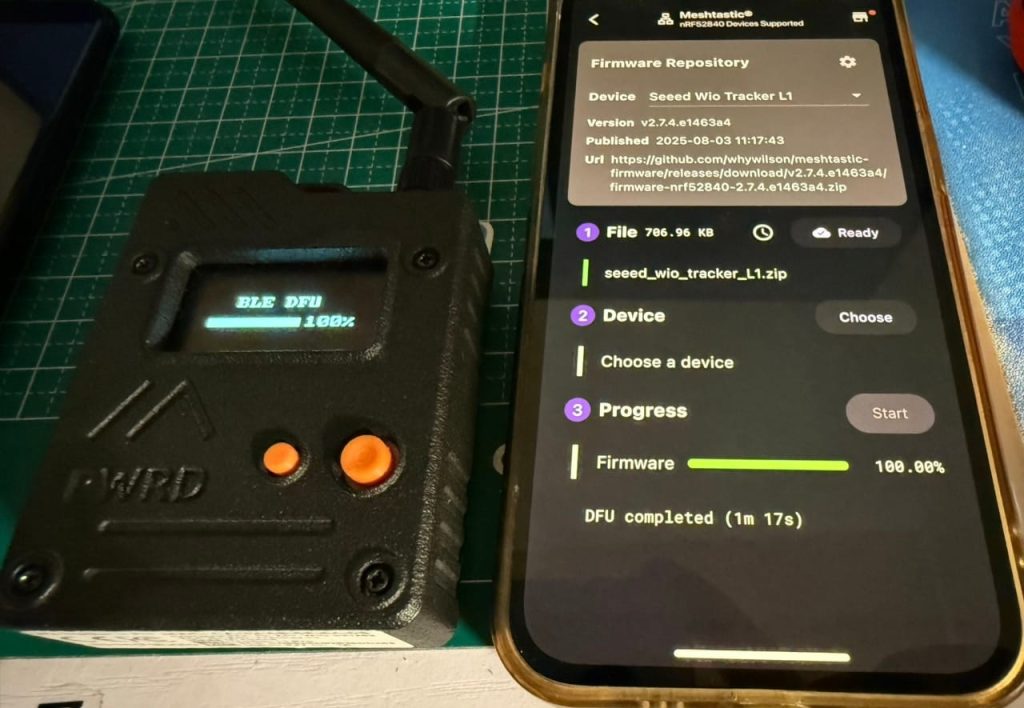
Step 5: Initiate Device Firmware Update (DFU)
Your device will be reboot to BLE OTA mode, depending on your device bootloader, it may show nothing but only LEDs glowing. On Meshtiny, GAT562, Wio Tracker L1 Pro with enhanced bootloader, it can show the process and percent while OTA on device.
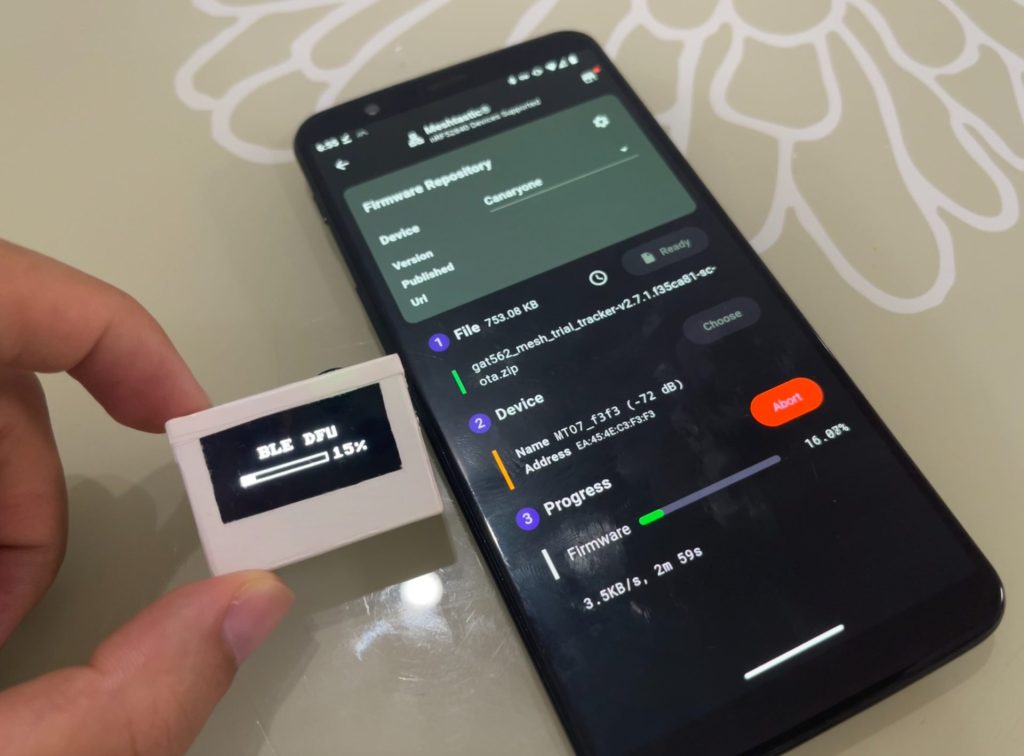
Step 6: Verification and Testing
After the DFU process completes, verify that the firmware installed correctly by checking the device information in the app. Test basic functionality to ensure everything is working as expected. You may need to configure additional settings specific to your Meshtastic network after the firmware update.
Benefits of Using MTools Tec Over Manual Methods
Choosing MTools Tec for your nRF52840 Meshtastic firmware needs offers several advantages:
- Comprehensive Device Support: Access to firmware for all 62 nRF52840 device types, not just the officially supported 36
- No Compilation Required: Eliminates the technical barrier of manual firmware compilation
- Mobile Convenience: Complete the entire process from your smartphone or tablet
- Automatic Updates: Easy access to firmware updates as they become available
- User-Friendly Interface: Streamlined process suitable for beginners and experts alike
Troubleshooting Common Issues
Even with the streamlined MTools Tec process, you might encounter some challenges:
- Connection Problems: Ensure Bluetooth is enabled and your device is in pairing mode
- Failed Downloads: Check your internet connection and repository settings
- Update Failures: Verify your device has sufficient battery power before starting DFU
- Device Not Recognized: Double-check that you’ve selected the correct device type from the list
Related link to Meshtastic Blog
https://meshtastic.org/blog/updates-to-supported-hardware.

 Magic Card
 Ultimate Magic Card
 4B UID S70 4K KeyFob
 6-in-1 KeyFob
 NTAG 213 215 216
 ISO15693 TAG – 64B
 Gen2 ISO15693 Coin
 RFID Reader
 PN532 BLE
 PcrReader(IC+ID)
 PN532Killer
 GroveNFC
 Proxmark3 RDV4
 iCopy-XS
 UHF Reader
 NFCKill Pro
 125KHz T5577 Cloner
 RFID Emulator
 Chameleon Ultra SE
 Chameleon Mini 2022
 Pixl.js OLED
 RFID Detector (LF HF UHF)
 RF Detector (LF HF)
 Lora
Lora Meshtiny
 GAT562 Pro
 GAT562 30s Kit
 Wio Tracker L1P
 WiFi Deauthor
 WiFi Killer Pro
 Plugin
 店小秘 PayPal 物流同步
 Product Category Banner
 YMM Car Bulb Size
 Attributes Separator
 OpenAI Reviewer
 Code
Code MTools Activation Code
 View All
Is there no firmware available for the GAT562 30s Kit? Or which one should I use?
It’s the same as GAT562 Pro. You can upgrade it in MTools BLE App or download it here https://github.com/mtoolstec/mt-firmware