
 Home
Home Reader






 Flipper
 Cardputer

 Software
 Windows
 PCSC Mifare Program
 Chameleon Ultra GUI
 iOS
iOS Android
 Web
WebNews, Meshtastic
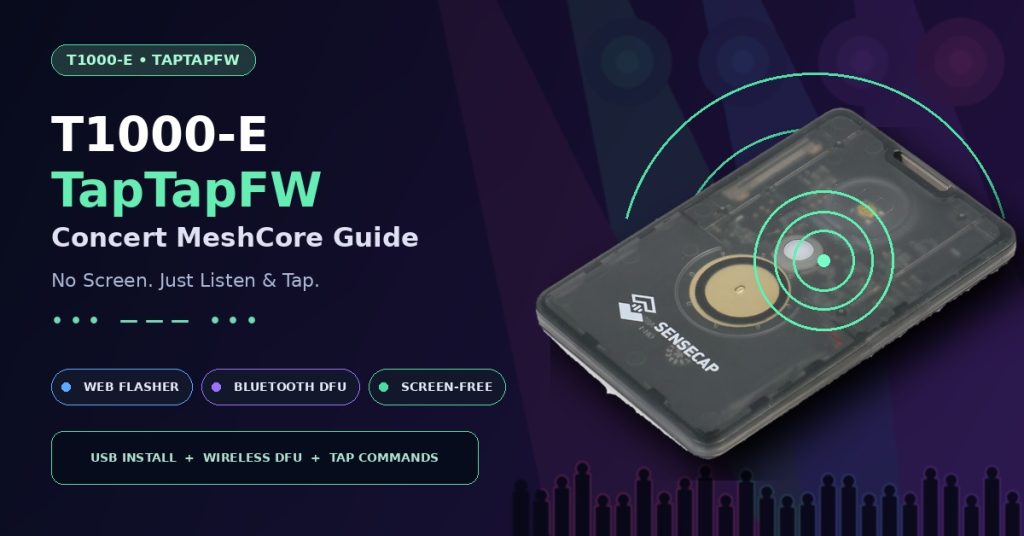
T1000-E TapTapFW Guide: Off-Grid MeshCore Messaging at Concerts
Jan
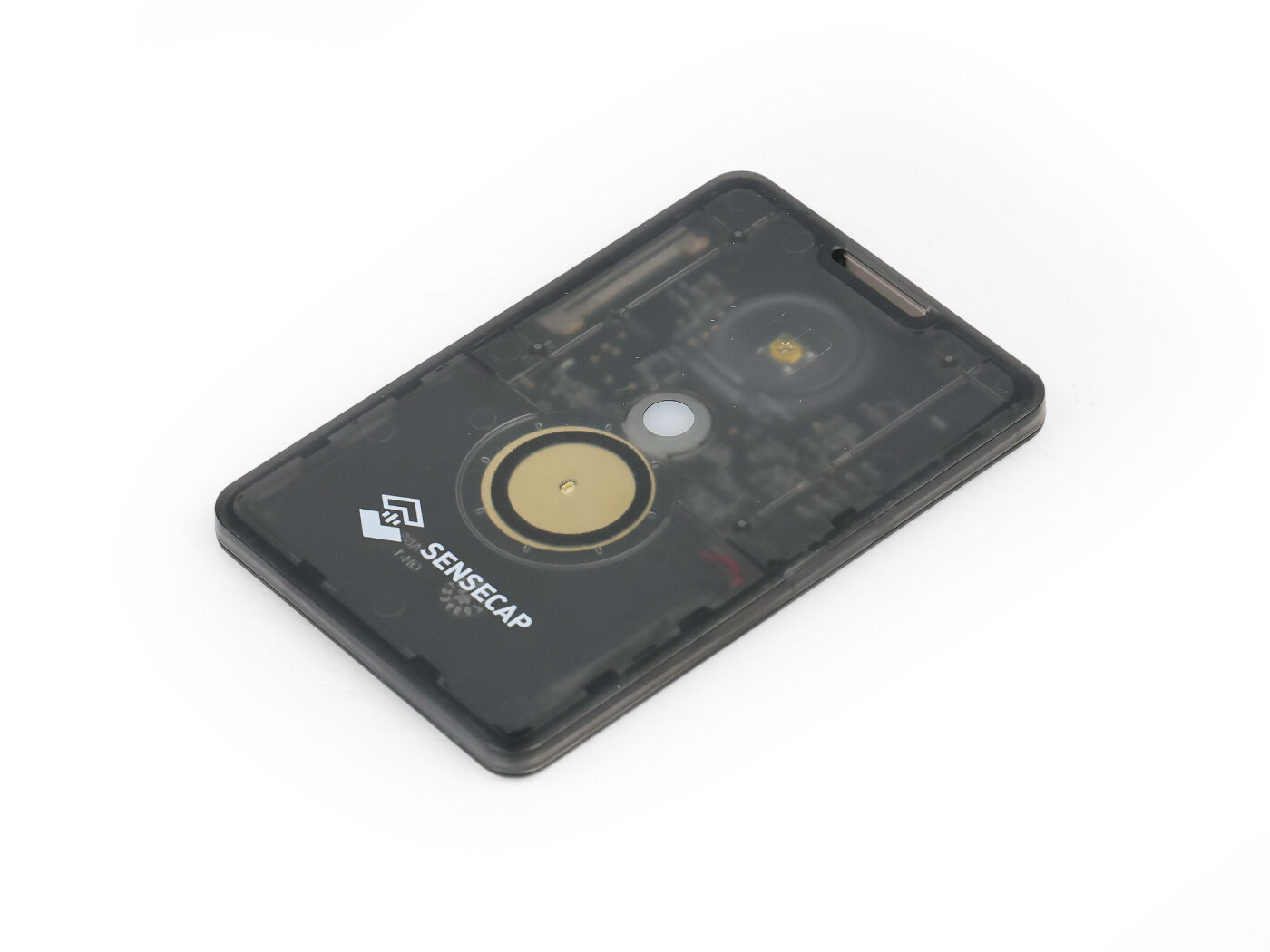
When cellular networks become overloaded at a concert, festival, stadium, or outdoor event, the SenseCAP T1000-E can still provide a direct off-grid messaging path. TapTapFW turns the credit-card-sized T1000-E into a screen-free MeshCore companion: incoming messages can be heard as Morse code or RTTTL alerts, and prepared replies can be selected and sent with physical taps.
Quick answer
Install TapTapFW with the MTools Web Flasher over USB, or push TapTapFW wirelessly with the MTools BLE app for iOS / Android. Configure up to eight messages, bind the tap target with /tap here, then use the T1000-E button without taking out your phone.
What Is TapTapFW?
TapTapFW is a headless firmware for the SenseCAP T1000-E, powered by MeshCore. “Headless” means that the node does not need a screen for normal operation. The buzzer and physical button become the user interface:
- Hear inbound text: play received messages as CW/Morse audio.
- Use ringtone alerts: switch to RTTTL mode when you want a recognizable notification instead of spoken-out Morse.
- Reply without a phone: choose from eight configurable messages with tap sequences.
- Keep full MeshCore connectivity: the phone can still connect over Bluetooth whenever you want the normal MeshCore app interface.
- Use location-aware tools: toggle GPS with the button and use advanced low-battery or geofence commands supported by current builds.
TapTapFW currently supports the T1000-E radio range from 865 to 928 MHz. Always select the legal frequency/profile for your country; hardware capability does not override local radio regulations.
Why It Fits Concerts and Festivals
A packed venue can have strong-looking LTE or 5G signal bars while data and SMS delivery remain delayed because thousands of phones are competing for network capacity. MeshCore does not depend on the venue’s cellular tower or Internet connection. Messages travel over the local LoRa mesh instead.
- Prepare before the event. Flash each T1000-E, choose the correct regional frequency, configure the same MeshCore channel, and load the group’s canned messages.
- Assign the destination. Use
/tap herein the intended MeshCore channel so button replies go to the correct group or target. - Wear or carry the tracker. The T1000-E is compact, IP65-rated and does not require a screen to remain useful.
- Listen and reply. Incoming traffic is signaled through CW or RTTTL; a prepared response can be selected with taps.
This is an off-grid communications tool, not a guarantee of coverage. Range and reliability still depend on frequency, antenna orientation, terrain, building materials, node placement and the availability of other MeshCore nodes or repeaters.
What You Need
- A SenseCAP T1000-E.
- A charged battery; use at least 50% before a firmware update.
- For USB flashing: a computer, the magnetic USB data cable and a Chromium-based browser with Web Serial support.
- For wireless flashing: the latest MTools BLE for iOS or MTools BLE for Android.
- The MeshCore app for channel configuration and TapTap commands.
Method 1: Install TapTapFW with the MTools Web Flasher
The online flasher is the simplest clean installation method and is also the best recovery path if a Bluetooth update fails. At the time of this update, the Web Flasher lists T1000-E TapTapFW 1.16.1 as the current stable build. Always use the newest stable version shown by the flasher.
- Open mtoolstec.com/flasher.
- Select the nRF52840 tab.
- Under Device / Firmware Name, choose T1000-E TapTapFW.
- Select the latest stable version. Click Refresh List if the firmware list is empty or stale.
- Connect the T1000-E using its magnetic USB data cable. A charge-only or unreliable cable can prevent the serial port from appearing.
- Click Enter DFU Mode. The device should reset into its bootloader. When the port picker appears, select the T1000-E bootloader port and reconnect.
- If the device is already in DFU mode, connect directly to the bootloader port.
- Click Flash Firmware and keep the cable attached until verification is complete.
- After the device reboots, reconnect from the MeshCore app and perform the first-time TapTap configuration described below.
About “Erase Device”: this is optional. Use it only for a bootloader mismatch, corrupted settings, repeated failed boots, or when you intentionally want a clean installation. Erasing removes saved channels and preferences, so export or record anything important first.
Alternative USB Method: Download the UF2
You can also download the current TapTapFW UF2 file, place the T1000-E in its UF2 bootloader, and copy the file to the mounted T1000-E drive. This is useful for offline recovery, but the Web Flasher is preferable when you want version selection and guided connection steps.
Method 2: Bluetooth DFU to TapTapFW with MTools BLE
MTools BLE can push firmware wirelessly to supported nRF52840 devices, including the T1000-E. This is the practical method for field updates when you do not have a USB cable or computer.
- Charge the T1000-E above 50% and keep the phone close to the tracker.
- Install or update MTools BLE on iOS or Android.
- Open the firmware/DFU tool in MTools BLE.
- Select T1000-E as the target device and choose TapTapFW. If your app version offers manual firmware selection, you may instead choose a compatible TapTapFW DFU package.
- Put the T1000-E into Bluetooth DFU/bootloader mode, then select the DFU device shown in the scanner. Bootloader advertisements may use a name such as AdaDFU instead of the normal MeshCore device name.
- Start the transfer. MTools BLE displays the stages Connecting → Initializing → Uploading → Validating → DFU Complete.
- Do not background or close the app, move the phone away, or power off the T1000-E during transfer.
- Wait for the tracker to reboot, then reconnect in MeshCore and verify the TapTapFW version with
/help.
If Bluetooth DFU repeatedly stalls, reduce the MTools BLE packet setting to approximately 3–5 packets, keep the devices close together, disable other nearby BLE connections, and retry. If the bootloader is no longer reachable over Bluetooth, recover with the USB Web Flasher or UF2 method.
For a broader explanation of the app’s nRF52840 update interface, see nRF52840 Firmware DFU with MTools BLE.
First-Time TapTapFW Configuration
After flashing, connect the T1000-E in the MeshCore app and open the channel that should receive commands and tap replies. Current firmware commands can be listed with /help. Send commands in the MeshCore channel as normal text messages.
1. Create Eight Preset Messages
Use /msg to view the current list. Some older builds/documentation use /msg?. Set up to eight entries separated by the pipe character:
/msg All good|Meet at exit|Need water|On my way|Wait there|Call me|Need help|EmergencyWrite or print the binary map and keep it with the tracker:
| Binary tone | Slot | Example message |
|---|---|---|
000 | 1 | All good |
001 | 2 | Meet at exit |
010 | 3 | Need water |
011 | 4 | On my way |
100 | 5 | Wait there |
101 | 6 | Call me |
110 | 7 | Need help |
111 | 8 | Emergency |
2. Bind the Tap Destination
In the desired MeshCore channel, send:
/tap hereThis binds tap-generated messages to the current channel or target. Test it before entering the venue so replies do not go to the wrong conversation.
3. Choose the Audio Mode
| Command | Result |
|---|---|
/buz cw | Play inbound text as Morse/CW. |
/buz rtttl | Play the configured ringtone for inbound events. |
/buz off | Mute buzzer output for quiet or stealth use. |
/wpm | Show the current CW speed. |
/wpm 20 | Set CW to 20 words per minute. Supported range is 5–50 WPM. |
/rtttl | View or configure RTTTL behavior on current builds. Older builds may show /ringtone. |
Current 1.16.x builds also list advanced commands such as /lobat for low-battery alerts, /mark for location/geofence points, and /flipmute. Run /help on your installed version because advanced command behavior can change between releases.
Tap Controls: The Screen-Free Workflow
| Button action | TapTapFW behavior |
|---|---|
| Single tap | Broadcast immediately. |
| Double tap | Enter preset-message selection mode. |
| Single tap while selecting | Cycle through eight slots, identified by binary tones from 000 to 111. |
| Long press | Confirm and send the highlighted preset. |
| Triple tap | Toggle GPS on or off. |
| Press and hold for 5 seconds | Power off the T1000-E. |
Recommended Concert Setup Checklist
- Use the correct regional frequency. Every group device must use a compatible and legal MeshCore radio profile.
- Configure the same channel before arrival. Venue entrances are a poor place to troubleshoot keys, contacts or channel settings.
- Choose short, unambiguous presets. “Meet at north exit” is better than “Where are you?” because the recipient can act without another exchange.
- Include safety messages. Reserve one slot for “Need help” and one for “Emergency”.
- Bind
/tap hereand test every unit. Confirm that each binary slot sends the intended text to the intended group. - Select a suitable buzzer mode. CW conveys message content, while RTTTL is easier to recognize in some noisy environments. Ear-level placement improves audibility.
- Test GPS and battery behavior. Turn GPS off when it is unnecessary; actual runtime depends on GNSS use, radio traffic, Bluetooth and firmware settings.
- Plan the mesh. Large or obstructed venues may need strategically placed repeater nodes. A single tracker cannot create coverage where no radio path exists.
T1000-E Hardware at a Glance
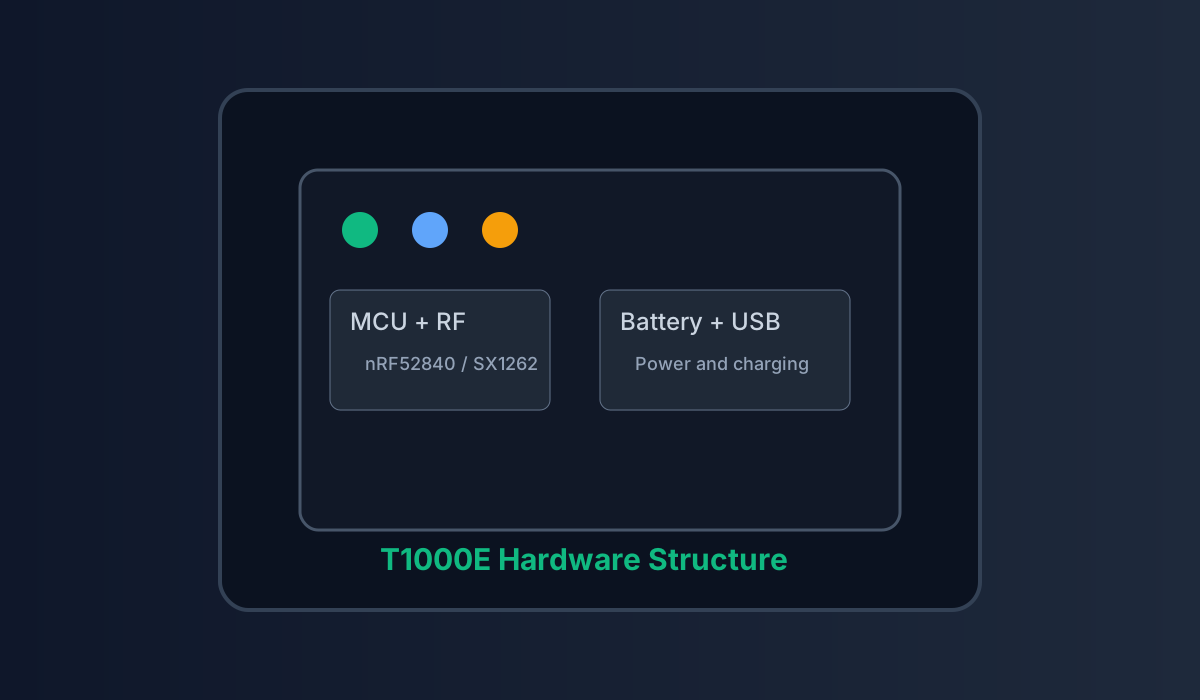
| MCU | Nordic nRF52840 |
|---|---|
| LoRa / GNSS radio | Semtech LR1110 |
| Positioning | MediaTek AG3335 GNSS |
| Battery | 700 mAh rechargeable battery |
| Enclosure | Credit-card-sized, approximately 6.5 mm thick |
| Protection | IP65 |
| TapTapFW frequency support | 865–928 MHz; select the correct legal regional profile |
Troubleshooting TapTapFW Installation
| Problem | What to try |
|---|---|
| Web Flasher cannot see the device | Use a USB data cable, reconnect the magnetic connector, permit Web Serial access, and try a Chromium-based desktop browser. |
| Connected in app mode instead of bootloader | Click Enter DFU Mode, allow the reset, then select the newly appearing T1000-E bootloader port. |
| Firmware list is empty | Select T1000-E TapTapFW and click Refresh List. |
| Bluetooth DFU device not found | Re-enter DFU mode, look for an AdaDFU-style advertisement, keep the phone close and temporarily disconnect other BLE devices. |
| Bluetooth transfer stalls | Keep MTools BLE in the foreground, reduce the packet count to 3–5, confirm battery level and retry at close range. |
| Device boots but old settings cause problems | Use the Web Flasher’s optional erase flow, then flash again and recreate the MeshCore channel and TapTap presets. |
| No sound after flashing | Check /buz, set /buz cw or /buz rtttl, and confirm the message is arriving in the bound channel. |
| Tap sends to the wrong place | Open the intended channel and run /tap here again. |
| Wrong preset selected | Review the 000–111 binary map and print a small reference card for the user. |
Frequently Asked Questions
Does TapTapFW require a phone?
A phone is useful for initial setup, full text entry, contacts and advanced configuration. After presets and the tap destination are configured, the primary receive-and-reply workflow can be used without taking out the phone.
Can I still use the MeshCore app?
Yes. TapTapFW keeps the Bluetooth companion workflow, so the T1000-E can still be used from the MeshCore app in addition to its physical tap controls.
Is TapTapFW the same as Meshtastic firmware?
No. Current TapTapFW is powered by MeshCore. Flashing it replaces the currently installed application firmware, so export anything you need before erasing or changing firmware families.
Which installation method should I use?
Use the Web Flasher for a first installation, clean recovery or bootloader troubleshooting. Use MTools BLE when the T1000-E is healthy and you want a convenient wireless field update.
Downloads and Useful Links
- TapTapFW official website and command reference
- MTools Web Firmware Flasher
- Direct TapTapFW UF2 download
- MTools BLE for iOS
- MTools BLE for Android
- MeshCore project
- TapTapFW community on Discord
Build Your TapTap Concert Kit
Get the SenseCAP T1000-E, flash TapTapFW, configure your eight essential messages and test the mesh before the crowd arrives.
Get the T1000-E Open Web Flasher
 Magic Card
 Ultimate Magic Card
 4B UID S70 4K KeyFob
 6-in-1 KeyFob
 NTAG 213 215 216
 ISO15693 TAG – 64B
 Gen2 ISO15693 Coin
 RFID Reader
 PN532 BLE
 PcrReader(IC+ID)
 PN532Killer
 GroveNFC
 Proxmark3 RDV4
 iCopy-XS
 UHF Reader
 NFCKill Pro
 125KHz T5577 Cloner
 RFID Emulator
 Chameleon Ultra SE
 Chameleon Mini 2022
 Pixl.js OLED
 RFID Detector (LF HF UHF)
 RF Detector (LF HF)
 Lora
Lora Meshtiny
 GAT562 Pro
 GAT562 30s Kit
 Wio Tracker L1P
 WiFi Deauthor
 WiFi Killer Pro
 Plugin
 店小秘 PayPal 物流同步
 Product Category Banner
 YMM Car Bulb Size
 Attributes Separator
 OpenAI Reviewer
 Code
Code MTools Activation Code
 View All